JLink
The jlink boot method is used to flash and boot devices using the
J-Link debug probe from
SEGGER. It supports flashing single or multiple images and can interact with
devices that have multiple cores.
- boot:
    method: jlink
    commands:
    - loadfile {shell} 0x0
    prompts:
    - 'SHELL>>'
    timeout:
      minutes: 2
Note
Images passed to JLink commands must be first deployed using the
tmpfs deploy action.
Installation
jlink must be installed manually on the LAVA worker since it is not provided
as a dependency by LAVA. See
JLink Software and Documentation Pack
for installing the tool.
Configuration
For adding a new device type, see JLink device type.
For adding a new device, refer to JLink device configuration.
commands
Optional. A list of JLink commands to execute. These can include loadfile or
any other valid JLink command. Variables in the commands reference images
deployed during the prior tmpfs deploy action.
Flashing signal image
When only a single image deployed with tmpfs deployment method and the
commands is not specified in this boot method, LAVA flashes the single image
to the default load address 0x0.
- boot:
    method: jlink
    timeout:
      minutes: 2
Flashing multiple images
- boot:
    method: jlink
    commands:
    - loadfile {shell} 0x0
    - loadfile {hello_world} 0x0
In this example, shell and hello_world are the image keys used in the
tmpfs deploy action.
coretype
For devices with multiple cores, specifies which core to connect to. The
available core types are defined by supported_core_types in the device type
template. If not specified, the first core in the list is used.
- boot:
    method: jlink
    coretype: M7
    commands:
    - loadfile {test}
    prompts:
    - 'SHELL>>'
    timeout:
      minutes: 2
prompts
See prompts.
timeout
See timeouts.
Example job
device_type: frdm-kw36zj
job_name: health-check

timeouts:
  job:
    minutes: 10
  action:
    minutes: 3

priority: medium
visibility: public

actions:
- deploy:
    to : tmpfs
    images :
      boot :
          url: https://example.com/frdm-kw36-shell.bin

- boot:
    method: jlink

- test:
    monitors:
    - name: tests
      start: Running test suite common_test
      end: PROJECT EXECUTION SUCCESSFUL
      pattern: '(?P<result>(PASS|FAIL)) - (?P<test_case_id>.*)\.'
      fixupdict:
        PASS: pass
        FAIL: fail
Using multiple MCUs
To set up a test requiring multiple MCUs, such as testing Bluetooth connectivity, you can use a multinode job. In this setup, MCU 1 and MCU 2 are placed on the same worker, and a Docker device is used to execute tests once both MCUs have completed their deployment and boot processes.
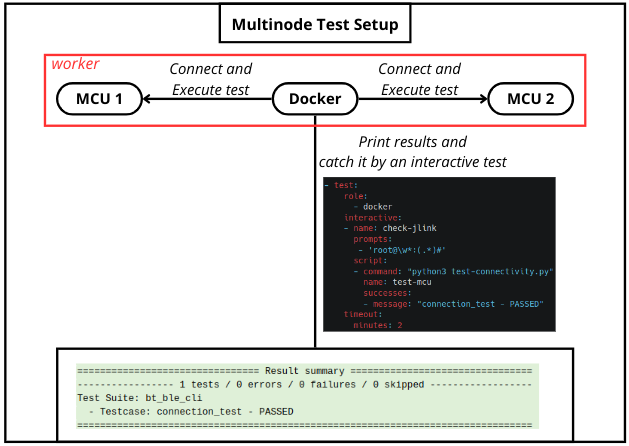
The test setup consists of:
- MCU 1 and MCU 2: These are the target devices to be tested.
- Docker Device: A Docker container is deployed to execute the tests. This Docker device is responsible for coordinating the test execution once both MCUs are ready.
Here’s how the process works:
- Deployment and Boot: The necessary images are deployed to both MCUs using tmpfs. Once deployed, the MCUs are booted to initiate the test process.
- Test Execution: Once both MCUs have completed their boot processes, the Docker device executes the test suite.
- Results Analysis: The test results are collected and analyzed by a LAVA test to verify the functionality of the MCUs and ensure successful connectivity.
Example job:
job_name: Multiple MCUs

timeouts:
  job:
    minutes: 5
  action:
    minutes: 5
  connection:
    minutes: 2

priority: medium
visibility: public

protocols:
  lava-multinode:
    roles:
      host:
        device_type: rw610bga
        count: 1
        tags:
          - rw610bga-fr01
        timeout:
          minutes: 30
      guest:
        device_type: rw610bga
        tags:
          - rw610bga-fr02
        count: 1
        timeout:
          minutes: 30
      docker:
        device_type: docker
        count: 1

actions:
- deploy:
    role:
      - host
      - guest
    to : tmpfs
    images :
      boot :
          url: https://example.com/bt_ble_cli.out
      cpu1 :
          url: https://example.com/rw61xw_raw_cpu1_a1.bin
      cpu2 :
          url: https://example.com/rw61xn_raw_cpu2_ble_a1.bin
      combo :
          url: https://example.com/rw61xn_combo_raw_cpu2_ble_15_4_combo_a1.bin

- deploy:
    role:
      - docker
    to: docker
    os: ubuntu
    image:
      name: connectivity_test
      local: true

- boot:
    role:
      - host
      - guest
    method: jlink
    commands :
      - loadfile {boot}
      - loadfile {cpu1} 0x8400000
      - loadfile {cpu2} 0x8540000
      - loadfile {combo} 0x85E0000
    timeout:
      minutes: 2

- boot:
    role:
      - docker
    method: docker
    command: bash
    prompts:
    - 'root@\w*:(.*)#'
    timeout:
      minutes: 2